
Your Sponsored Products campaigns may be spending part of their budget beyond Amazon through an off-Amazon ads setting that is easy to miss. In account audits, this placement has produced ACOS figures from 70% to 97%, even when blended campaign results looked acceptable.
That doesn’t mean every off-Amazon placement will lose money. It does mean you should measure it separately, then limit spending when it doesn’t support your margin and campaign goal.
Key Takeaways
- Export a Sponsored Products placement report before changing settings.
- Compare off-Amazon results against top of search, product pages, and rest of search.
- Change weak campaigns to “Limit off-Amazon spend.”
- Confirm every manual or bulk update after it processes.
What Off-Amazon Ads Mean for Sponsored Products Campaigns
Sponsored Products has long included three familiar placements: top of search, rest of search, and product pages. Off-Amazon delivery adds another place where Amazon can serve ads beyond its own shopping results.
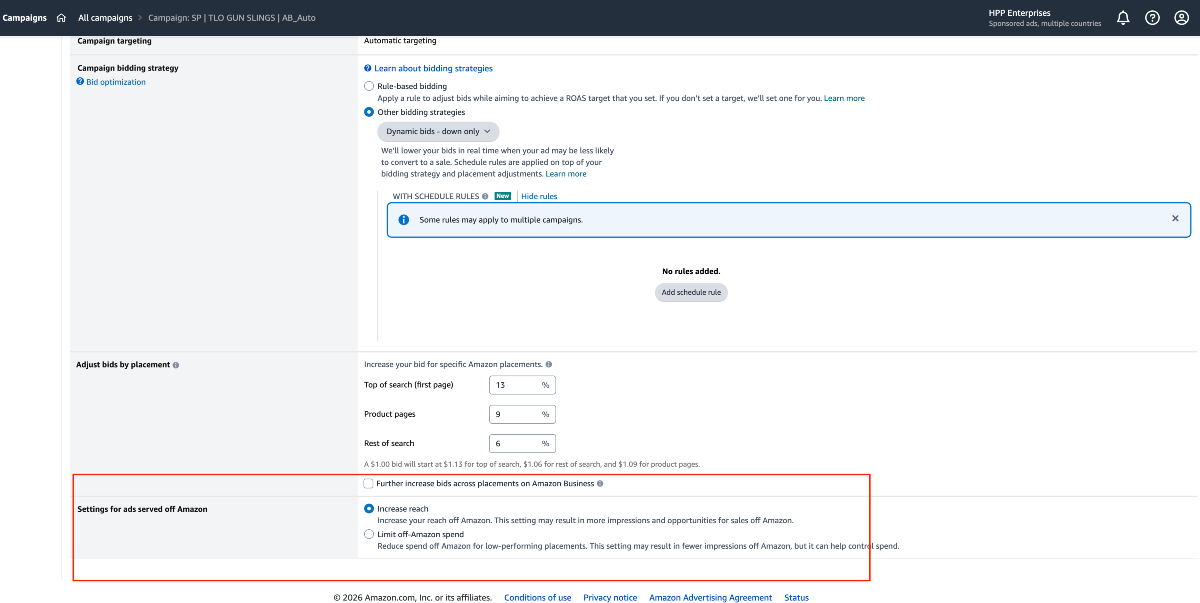
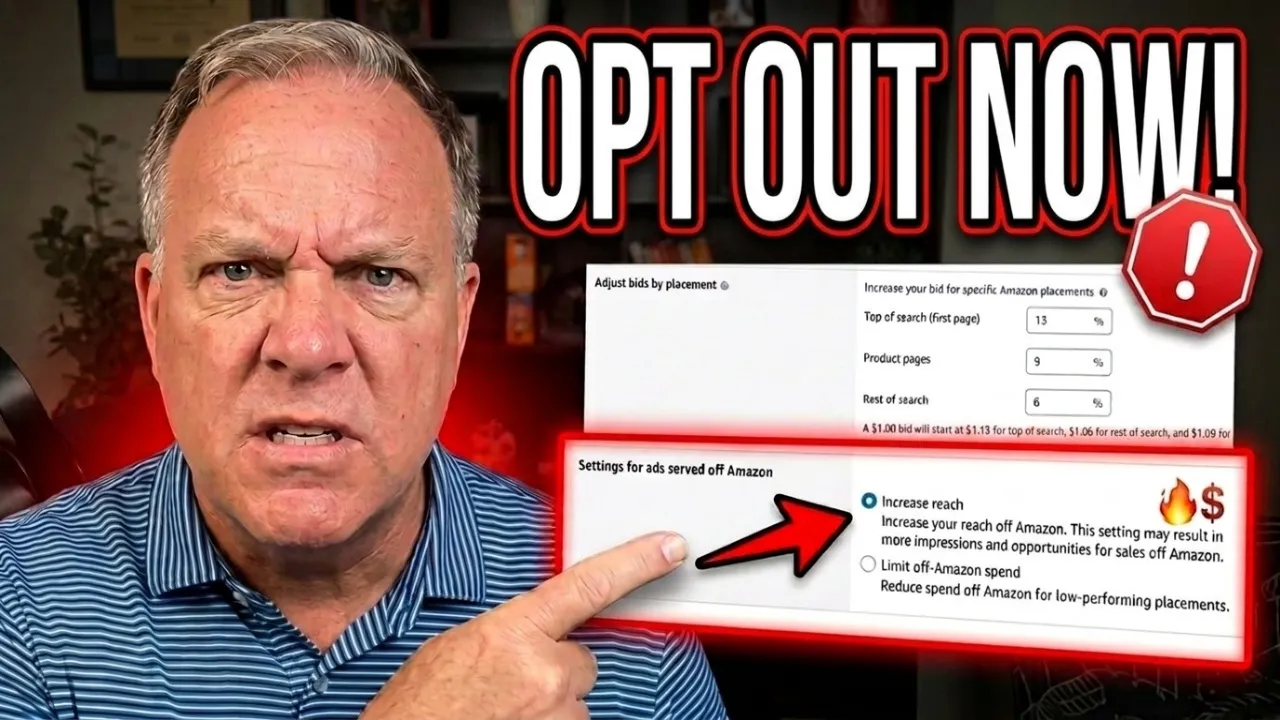
Amazon may label this option as “ads served off Amazon.” It can affect impressions, clicks, spend, sales, conversion rate, and ACOS. A campaign can look healthy in total while an off-Amazon segment uses budget with little return.
Review your own results before making a decision. Product price, contribution margin, campaign objective, and available data should guide the call.
Why “Increase reach” needs a closer look
The campaign setting generally offers two choices. “Increase reach off Amazon” can expand delivery and impressions outside Amazon. “Limit off-Amazon spend” reduces spending on lower-performing off-Amazon placements.
More impressions don’t automatically create profitable sales. Products that rely on high purchase intent inside Amazon may attract clicks elsewhere without producing enough orders. Since this control appears low in campaign settings, it can go unnoticed during normal PPC work.
A weak off-Amazon placement can hide inside an otherwise acceptable blended ACOS.
How off-Amazon results can distort ACOS
Compare spend, impressions, clicks, orders, sales, click-through rate, conversion rate, CPC, and ACOS by placement. High ACOS, low conversion rate, or meaningful spend with zero orders are clear warning signs.
For example, an account spending $65,000 per month on ads showed almost 97% ACOS for this placement during an audit. Its total campaign reporting could have concealed that waste. Still, give the placement enough time and clicks to produce useful evidence before acting.
How to Audit Off-Amazon Ads Before Changing Settings
Open Amazon Ads Campaign Manager, select Sponsored Products, and choose a useful date range. Then export a placement report. Amazon provides placement report documentation for Sponsored Products, although labels and report options can vary by account.
Isolate the off-Amazon rows and compare them with the three standard placements. Save the report before making changes so you can measure the impact later.
Use these signals when deciding whether to limit spend:
- ACOS stays above your profitable target.
- The placement has few or no orders after meaningful spend.
- Conversion rate trails the other placements.
- Spend isn’t producing profitable growth.
What to check before making a decision
One or two clicks aren’t enough data. Review several weeks when possible, and separate branded from non-branded campaigns because their goals and conversion patterns differ.
Off-Amazon ads may still fit products with strong margins, broad demand, or proven external traffic. The goal is to protect profitable advertising, not to disable a placement based on assumptions.
How to Limit Off-Amazon Spend Manually
For a smaller account, open Campaign Manager and filter to active Sponsored Products campaigns. Open a campaign, select campaign settings, then scroll to the ads-served-off-Amazon area near the placement controls.
Change “Increase reach off Amazon” to “Limit off-Amazon spend,” then save. Repeat this for each campaign that needs the adjustment, and record the date of the change.
Don’t confuse this setting with bid adjustments for top of search, product pages, and rest of search. Those controls affect where Amazon bids more aggressively within its shopping environment.
When bulk editing is safer and faster
Manual edits become impractical with hundreds or thousands of campaigns. Amazon Ads Bulk Operations can handle large updates, but work from a newly downloaded template. Amazon can change file layouts, column letters, and field names. See the video above to watch how we do this in bulk.
How to Update Sponsored Products in Bulk
Open Bulk Operations in Amazon Ads and download your current campaign file. In the spreadsheet, go to the Sponsored Products campaigns tab and filter the Entity field so it shows campaigns only.
Copy the campaign rows you want to change into a clean working file if that makes the edit easier. Find the column headed “Off Amazon ad serving” and enter “Limit off-Amazon spend.”
The most important field is Operation. It must say “Update.” Leave live campaign details unchanged, including IDs, budget, bids, targeting, and bidding strategy. Save the revised file, upload it through Bulk Operations, then review the processing status.
Use the column headers, not example letters such as C or AQ. Amazon’s templates change, while the field names tell you what the spreadsheet will update.
Checks that confirm the upload worked
Review the upload result for successful and failed rows. Download the error report if Amazon rejects a row, correct only the identified issue, and upload again.
Next, open a sample campaign in Campaign Manager. The setting should show “Limit off-Amazon spend.” After new data accumulates, compare placement spend, sales, ACOS, and conversion rate against the saved pre-change report.
Common Mistakes That Waste More PPC Budget
- Editing Sponsored Brands or Sponsored Display instead of Sponsored Products.
- Leaving the Operation field blank instead of entering “Update.”
- Changing unrelated spreadsheet fields during a bulk edit.
- Uploading an outdated bulk template.
- Applying a large update before testing a small batch.
- Judging performance before enough data accumulates.
- Treating lower impressions as proof the setting failed.
Limiting off-Amazon spend doesn’t replace search-term reviews, bid management, listing conversion work, or budget controls. For more hands-on campaign improvement, review Amazon PPC management services.
FAQs About Amazon Off-Amazon Ad Placements
Are off-Amazon ads part of Sponsored Products?
They can be. The setting discussed here applies to Sponsored Products campaigns and controls ads served beyond Amazon.
Does “Limit off-Amazon spend” turn the placement off?
No. It reduces off-Amazon spending rather than fully eliminating it.
Should every seller disable “Increase reach”?
No. Check placement-level profitability first. Keep it if your own data supports the spend.
Where can sellers see off-Amazon performance?
Export a Sponsored Products placement report from Amazon Ads and compare off-Amazon data with other placements.
Can this setting be changed in bulk?
Yes. Download the current Bulk Operations file, set Operation to “Update,” enter “Limit off-Amazon spend,” and upload the edited file.
What should happen if a bulk upload fails?
Read the error report, correct the affected row, and re-upload it. Amazon may change field names and templates, so confirm the current wording in your account.
Make Placement Decisions With Profit Data
Off-Amazon ads deserve the same scrutiny as every other Amazon PPC placement. Export the placement report, isolate off-Amazon results, compare ACOS and conversion data, then limit spending where the return doesn’t support your margin.
Subscribe to eComCatalyst on YouTube for more Amazon growth strategies, or schedule a free consultation to discuss your advertising account.